- Featured Product: Online Payments (Stripe)
- Meet Moveware
- Getting Started
- Jobs
- The Job Life Cycle and Statuses
- Jobs – Search
- Jobs – Details
- Jobs – DSP
- Jobs – Diary
- Jobs – Contact
- Jobs – Costing
- Jobs – Costing Interface
- The Costing Life Cycle
- Add a Cost Option
- Add Estimated Costs and Suppliers in Costing
- Add a Sell Price in Costing
- Add a Cost Line to a Cost Option
- Print a Quote for a Cost Option
- The Status Q Cost Option
- Modify the Cost Option Details
- The Option Total Line
- Add Actual Costs and Post a Purchase
- Accruals in Job Costing
- Multiple Currencies in Jobs Costing
- Enter Foreign Currency Costs and Sell Prices
- Add an Additional Cost Option
- Combine Cost Options
- Misc Job Types Costing
- Cancel a Cost Option
- Change a Cost Option Customer (Debtor)
- Change a Supplier (Creditor) of a Costing Line
- Set a Costing Line as No Charge
- Set a Cost Option as No Charge
- Create a Costing Credit Note
- Internal Resource Costs
- Jobs – Costing Fields
- Jobs – Invoicing
- Jobs – Invoicing Interface
- Create an Invoice in Jobs
- Modify Invoice Header Information
- Modify Invoice Charge Lines
- Invoice One Total Line
- Post an Invoice in Jobs
- Print an Invoice in Jobs
- Unlink an Invoice from a Cost Option
- Add a Credit Note
- Add an Additional Invoice
- Partial Invoicing
- Jobs – Invoicing Fields
- Jobs – Inventory
- Jobs – Resources
- Jobs – Import / Export
- Jobs – Waybill
- Jobs – Storage
- Jobs – Review
- Jobs – Claims
- Job Folder
- Baggage
- Fine Art
- Corporate (CRM)
- Sales
- Daily Diary (Operations Diary)
- Operations Diary Icons and Filters
- Operations Diary Notes
- Allocate Resources in the Operations Diary
- Close a Day from the Operations Diary
- Confirm Start Times
- Diary Actions in the Operations Diary
- Print the Operations Diary
- SMS Messages in the Operations Diary
- Enter Actual Times in the Operations Diary
- Operations Diary – Planner Tab
- Organizer
- Waybills
- Operations
- Full Screen Dispatch
- Container Movements
- Crates
- Destination Summary
- Fleet
- Inventory Management
- Labels
- Asset Management
- Object Management
- Resource Usage
- Start Times
- Timesheets
- Workload
- Diary Messages
- International
- Quality
- Storage
- Storage Management
- Storage Invoicing
- Storage Rate Revision
- Storage Locations
- Warehouse Management
- Customers
- Customer Management
- Customer Ageing
- Combined Invoicing
- Customer Approval Setup
- Invoicing
- Invoice Update
- Receipting
- Receipt Listing
- Receipts Import
- Van Line Clearing
- Suppliers
- Supplier Management
- Purchases
- Create a Manual Purchase Invoice
- Apply a Purchase Invoice to a Job
- Apply a Purchase Invoice to a Waybill
- Apply a Purchase Invoice to an Inventory
- Assign a Purchase Invoice for Approval
- Cancel a Purchase Invoice
- Email a Purchase Invoice
- Purchase Invoicing in Foreign Currency
- Modify a Purchase Invoice
- Place a Purchase Invoice on Hold
- Print a Purchase Invoice
- Reverse a Posted Purchase Invoice
- Search for a Purchase Invoice
- Purchase Event Log
- Purchase Approval
- Purchase Update
- Purchase Import / Export
- Accruals Management
- Payments
- Payment Batch
- Payment Listing
- Purchase Orders
- Contra Accounts
- Subcontractor Payments
- General Ledger
- Chart of Accounts
- General Ledger Setup
- General Ledger Inquiry
- General Ledger Journals
- General Ledger Accounting Close Date
- Budgets
- Sales Budgets
- Tax Return Module
- Banking
- Employees
- Employee Management
- Employee Payroll
- Employee Payroll Update
- Employee Payroll Admin
- Single Touch Payroll
- STP Phase 2 – Quick Start Guide
- STP Phase 2 – FAQ
- Moveware STP Configuration
- STP Workflow
- STP Reporting
- STP Corrections
- STP Data Export Fields and Requirements
- Administration
- Moveware Setup
- Bank Accounts
- Branch Management
- Calendar Management
- Codes Management
- Company Management
- Cost Centres
- Destinations
- Diary Actions
- Diary Messages
- Internal Phone Book
- Inventory Management
- Inventory Management – Containers
- Inventory Management – Crates
- Inventory Management – Furniture
- Inventory Management – Labour
- Inventory Management – Office Equipment
- Inventory Management – Other
- Inventory Management – Packing Materials
- Inventory Management – Storage
- Inventory Management – Vehicles
- Inventory Management – Vessels
- Job Products
- Job Types Management
- Locations
- News and Information
- Paragraph Management
- Ports Management
- Postcodes
- Rates Management
- Review Setup
- Sales Representatives
- Supplier Products
- Tax Codes
- Waybill Payment Messages
- Web Setup
- System Setup
- Codes
- Error Log
- Event Log
- Groups
- Menu Management
- MoveConnect
- MoveConnect Log Viewer
- Remote Printers
- Report Configuration
- Security Management
- System Settings
- System Start Numbers
- System Parameters
- User Management
- Mobi Setup
- Keeping Mobi Updated
- Set Up Employees to Use Mobi
- Configure Mobi Settings
- All Mobi Settings
- Language Setup
- Configure Pre-Set Paragraphs
- How to Customize Menus, Reports, and Reviews in Mobi
- Editing Inventory Item Button Ribbon
- Customize Mobi Inventory Buttons
- Defaulting Methods in Mobi
- Mobi Barcoding
- Configuring Mobi Costing Menu
- Send E-mails from Mobi
- How to Activate Mobi Automatic E-mail/SMS
- Set up a Feedback Form
- Exporting Data Out of Mobi
- Utilities
- Reports
- Generate Reports
- Set a Custom Report
- Print Reports
- Schedule Reports
- Configure Reports
- Reports – Favourites
- Reports – Sales
- Reports – Export
- Reports – Import
- Reports – Operations
- Reports – Storage
- Reports – CRM (Corporate)
- Reports – Customers
- Reports – Suppliers
- Reports – General Ledger
- Reports – Employees
- Reports – Analysis
- Reports – Other
- Reports – Schedule
- Moveware Applications
- MobiCrew
- Download and Log Into Mobi (MobiCrew)
- Sync Information in Mobi
- Mobi Interface and Menus
- Mobi Jobs
- Search Screen
- Summary Screen
- Notes Screen
- Addresses Screen
- Diary Screen
- Messages Screen
- Status Screen
- Inventory Screen
- Mobi Vehicle Receipting and Condition Reporting
- Materials Screen
- Manage Materials
- Costing Screen
- Client Signoff
- Reviews Screen
- Print Screen
- Check Off Screen
- Timesheet
- Download Screen
- Vehicle Documents
- Mobi Warehouse
- Mobi Fine Art
- Mobi Submit Feedback Menu
- MobiSurvey
- Online Payments
- MoveSurvey
- MoveSurvey Setup
- Install MoveSurvey
- MoveSurvey Wizard
- MoveSurvey – Import Onto Another Device
- Moveware Codes for MoveSurvey
- Set up MoveSurvey Users
- Set up Job Products for MoveSurvey
- Set up Inventory for MoveSurvey
- Moveware reports in MoveSurvey
- Run MoveSurvey
- Enabling the Camera Permissions in MoveSurvey
- Uninstall MoveSurvey
- Using MoveSurvey
- MoveSurvey Main Menu
- Synchronise Data in MoveSurvey
- MoveSurvey – Search
- MoveSurvey – Details
- MoveSurvey – Notes
- MoveSurvey – Diary
- MoveSurvey – Inventory
- MoveSurvey – Review
- MoveSurvey – Resources
- MoveSurvey – Account
- MoveSurvey – Client Summary
- MoveSurvey – Reports
- MoveSurvey – Tools
- MoveSurvey Photos & Attachments
- MoveCrew
- MoveCrew Setup
- Using MoveCrew
- MoveSMS
- MoveTransfer
- Portal
- Web Portal – Moveware Admin Guide
- Web Portal – Move Manager Guide
- Web Portal – Client Guide
- Web Portal – Online Quote
- Web Portal – Partner Guide
- Third Party Interfaces
- 1-Stop
- A3
- ABF
- Adobe Sign
- ADP Payroll
- Allied Van Lines Canada
- Altair
- ANZ
- Ariba
- Australian ABA File
- Bambora
- Bank of NZ
- Bekins Van Lines
- Canadian Banking Files
- Cargowise
- Compare Quotes
- Credit Cards
- CustomsController
- Daycos
- Dimensions (Access)
- Dynamics Business Central
- Dynamics Navision
- EasyDPS
- eMyLeads
- Enterprise
- Exactus
- Exact
- Ezidebit
- FMS
- Fuel Card Interfaces
- Great Plains
- Happy to Serve
- Harmony
- Hockingstuart
- IBS
- ISF Integration
- LogiX
- Make Tax Digital
- Manpack3
- Maximizer
- Moving24
- MSP
- MVF / MoveHub
- MyDHL+
- NAB Transact
- NEDVAN
- NES (National Export System)
- New Zealand Banking File
- New Zealand Defence Force
- New Zealand Ministry of Education
- New Zealand Police
- OFAC
- Orphee (Groupage)
- Parsifal PRISM
- Pasha
- Podium
- Quickbooks
- RHA
- Royal Mail PAF
- Royal Wolf
- Sage
- SAP
- SAP Ariba
- SCF
- SEPA File
- South African Banking Files
- SuperStream
- Techmate
- Trackfreight
- TriGlobal
- Twilio
- UK BACS File
- U.S. Bank – Multi Payment Export
- U.S. NACHA File
- Visma Global
- Weichert
- Westpac NZ
- Westpac (PayWay)
- Worldpay
- World Office
- Wheatons Van Lines
- Xero
- Moveware Hosting Platform
- Infrastructure Setup
- Moveware Infrastructure Setup
- Product Requirements
- Recommended Settings for Windows Desktop Resolution
- General Settings
- Install Moveware Client on Terminal Server or Workstation
- Install Crystal Reports Runtime Files (Manually)
- Install Moveware PDF (Manually)
- Moveware Database Setup
- Database Client Tools
- Disaster Recovery
- Moveware System Security
- Moveware System Backup
- Moveware System Restore
- Ransomware
- Set up a Microsoft Scheduled Task
- Set up a Moveware Database and Backup Procedure on a Client’s Server
- Windows Update Settings
- Windows Virus & Ransomware Protection
- Glossary
- Help and Support
The Search tab on the Bond Register window displays all import Jobs by Waybill and Job, together with the country they have originated from (From column), the Move Manager controlling the Job (Rep column), the client’s name and the key action dates for each Job. The “V” column displays a Y if a Vehicle was involved in the Job.
The search filters can be used to search for the required Waybills or Jobs. Details of selected Jobs can then be viewed in the additional tabs of the Bond Register window. These tabs are the same as in Jobs Management.
The right side of the screen displays the key dates in the Customs process for each Job. These dates are obtained from the Diary of each Job. An action is identified as being an “Arrival” action, or a “Docs Received” action by configuring the action as a “Key Action”. This is set up in the Diary Actions window.
To set up key actions:
1- Navigate to Administration > Moveware Setup > Diary Actions in the main menu.
2. Find the Diary action on your system that represents one of the date columns in the Bond Register. For instance, Lodge Customs. If that diary action doesn’t already exist, create it. See Add a New Diary Action for guidance.
3. Once you’ve clicked on the Diary Action you wish to assign as a Key Action, look for the Key Action field
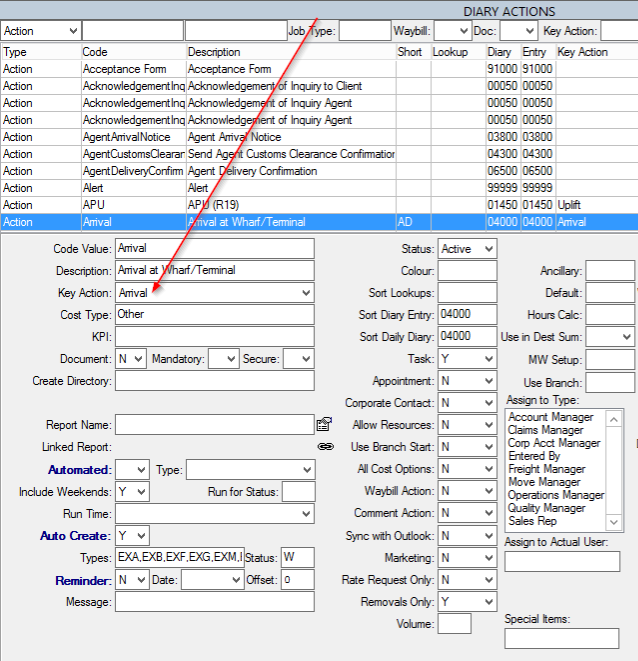
4. Click the Key Action dropdown menu and find the applicable Key Action for this Diary Action. Click Save.
Bond Register display options:
- Navigate to International > Bond Register in the main menu. A list of Jobs in import consignments is displayed in descending Waybill order.
- Select the Include Completed checkbox to display all imports, including completed jobs.
- The list of Jobs can be filtered by key action dates. Check boxes next to each action at the top of the window can be used to display Jobs that have a date assigned, or no date assigned. Clicking in the upper checkbox displays Jobs that have a date for this Key Action. Clicking in the lower checkbox displays items where the Key Action has not been given a date.
- Dates may be assigned by entering a date on the Diary Action for each Key Action.
To assign action dates to Jobs in bulk:
- Navigate to International > Bond Register in the main menu.
- Double click Jobs to select them, or filter the records and click the Select All
 button.
 - Click the Set Date drop down box and select a key action.
- In the Set Date window enter the Action Date. Choose whether or not to complete the action and update child dates.
- Click Continue.
- The action date is applied to the selected Jobs, and can be viewed in the Diary tab of the Bond Register window for each Job.
To print the Bond Register:
Print the Bond Register with either the PDF, Preview or Print buttons at the top right of the Search tab.